
IN THIS ARTICLE
How to log out of PIX4Dmapper
How to log out of PIX4Dmapper if you are logged in with an account without a license
How to log out of PIX4Dmapper if you are using a version that you are not allowed to use because of an expired Maintenance Plan
How to log out of PIX4Dmapper:
1. Make sure that there is an Internet connection for this procedure.
2. Open PIX4Dmapper on the computer where it is currently registered.
3. On the right side of the toolbar, click the user options button  and click Log Out...
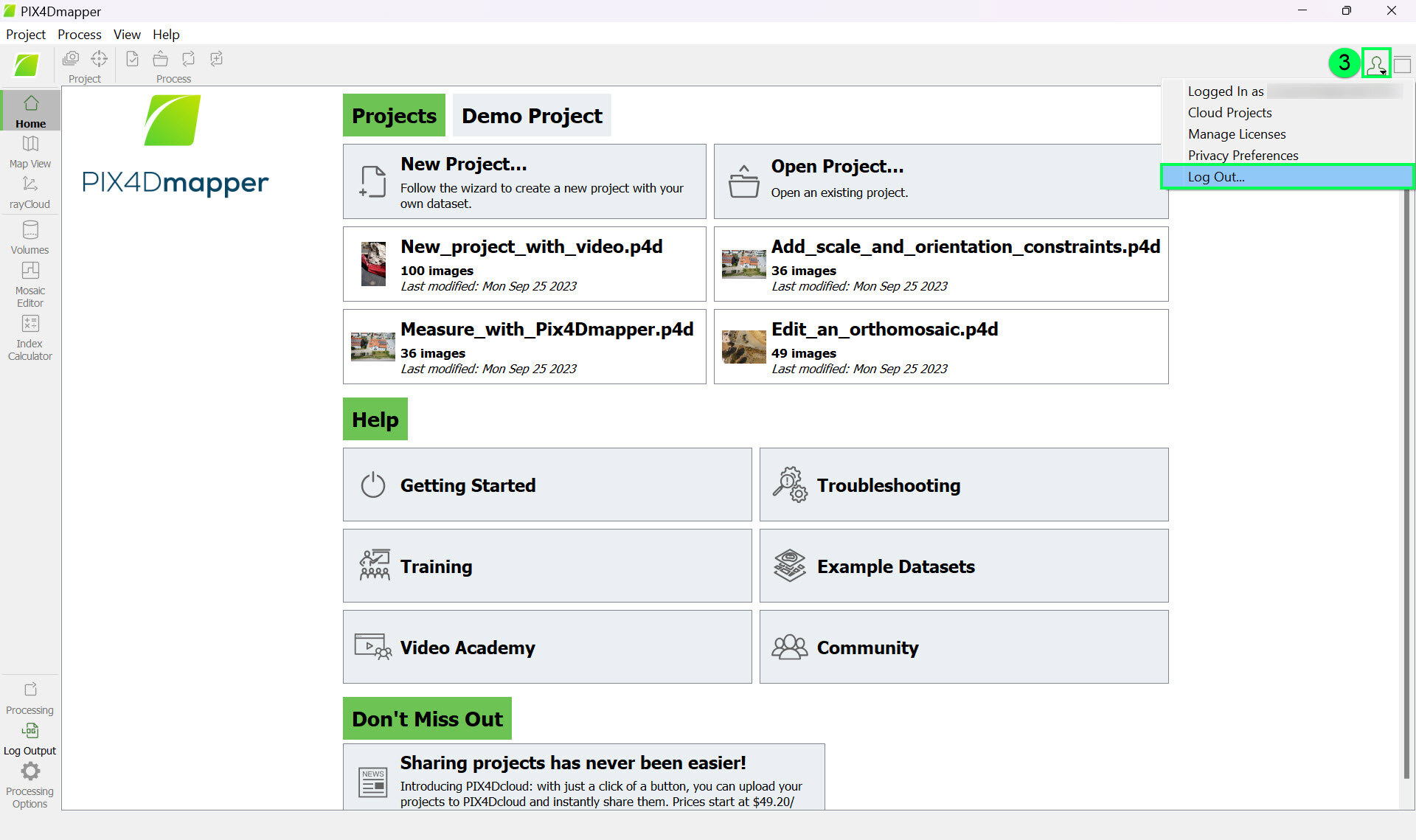
4. Confirm the action by clicking OK.
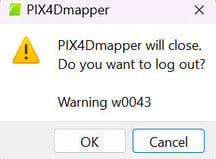
After logging out from PIX4Dmapper, this action frees a seat on the license. Users can then log in with another device to activate the seat. For more information on how to log in to PIX4Dmapper: How to log in - PIX4Dmapper.
Tip: If you don't have access to your logged in device, you can use the Remote device deactivation feature (more information in this article: Remote device deactivation - PIX4Dmapper). Note that this feature must be activated while there is no active device.
How to log out of PIX4Dmapper if you are logged in with an account without a license:
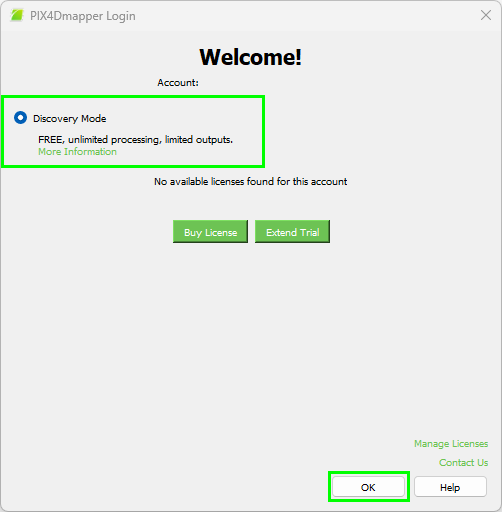
- If you are logged in with an account without a license, at log in you will see a pop up (image below) and you be asked to select the Discovery Mode or to purchase a license.
- Select Discovery Mode and then click on OK.
- Make sure that there is an Internet connection for this procedure.
- Follow the instructions listed above in the How to log out of PIX4Dmapper section
How to log out of PIX4Dmapper if you are using a version that you are not allowed to use because of an expired Maintenance Plan:
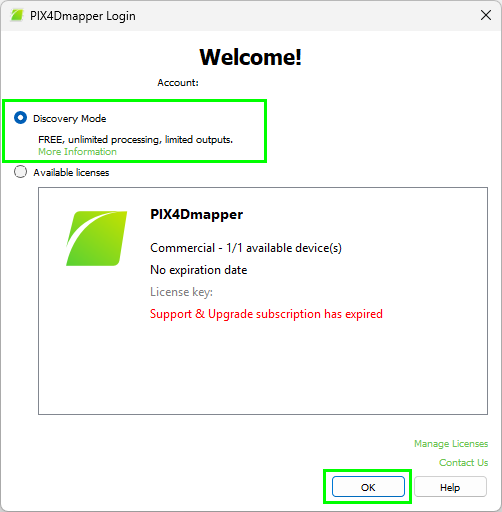
- If you are logged in with an account with an OTC license with an expired Maintenance Plan, at login, you will see a pop-up (image below), and you will be asked to select the Discovery Mode or select an available license. When the license with expired S&U is selected, it is not possible to select OK.
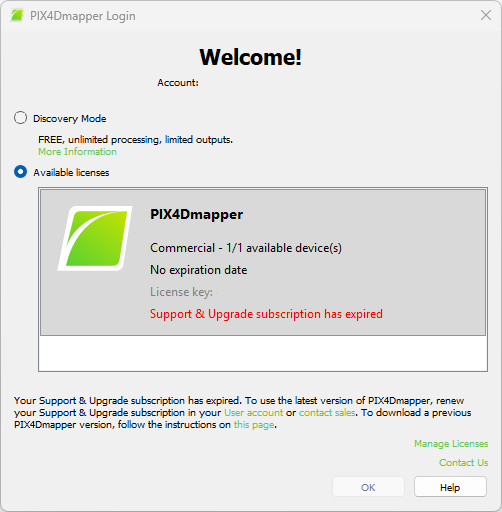
- Select Discovery Mode and then click on OK.
- Make sure that there is an Internet connection for this procedure.
- Follow the instructions listed above in the How to log out of PIX4Dmapper section