
IN THIS ARTICLE
Error
Solutions
Check the organization used
Proxy configuration
Verify Whether You Are Using a Compatible Software Version
Check for Firewall or Network Restrictions
Error
After login, the software is not able to get access to a valid license.
This can appear in at least two ways:
-
PIX4Dmatic shows the message "No license available" in the top right corner, even if there is a license associated with the Pix4D account used.

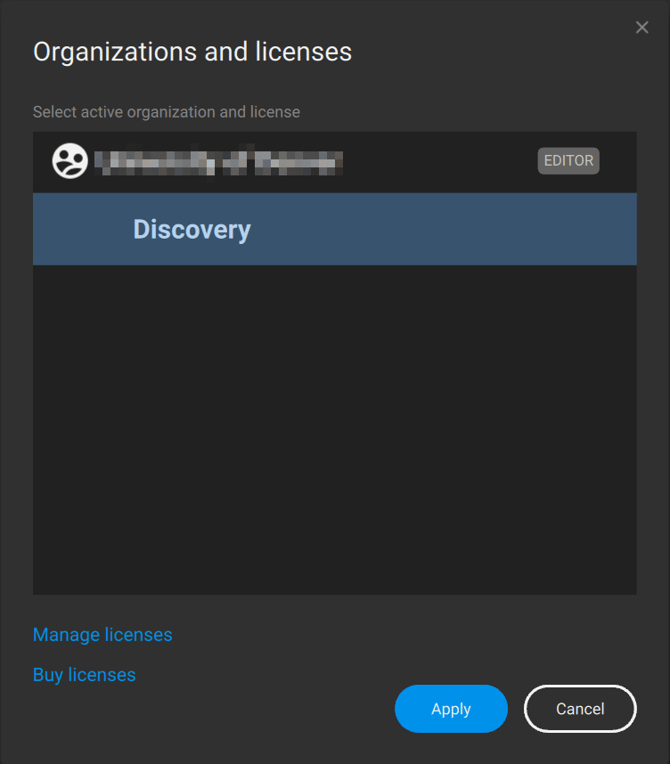
or - The license is not appearing in the Organizations and licenses panel and only Discovery is shown.
Solutions
Solution 1: Check the organization used
Please verify that the selected organization contains a valid license.
- Click on your personal button in the top-right corner.

- Click Switch organization.

- Make sure that an organization with a license available is selected.

- If this is not the case, select an organization holding a valid available license and click Apply changes.
- If you see a valid license for PIX4Dmatic in the selected organization, but the message No license available still appears, please go to the Solution 2 listed below.
Solution 2: Proxy configuration
Local networks protected by proxies can cause issues with detecting licenses. A warning No license available is displayed. If a proxy server is used to connect to the Internet, enter the proxy settings, following:
- Open the Proxy window by clicking Network...
- There are three options to choose from:
- No proxy
- Use System proxy
- Manual proxy configuration
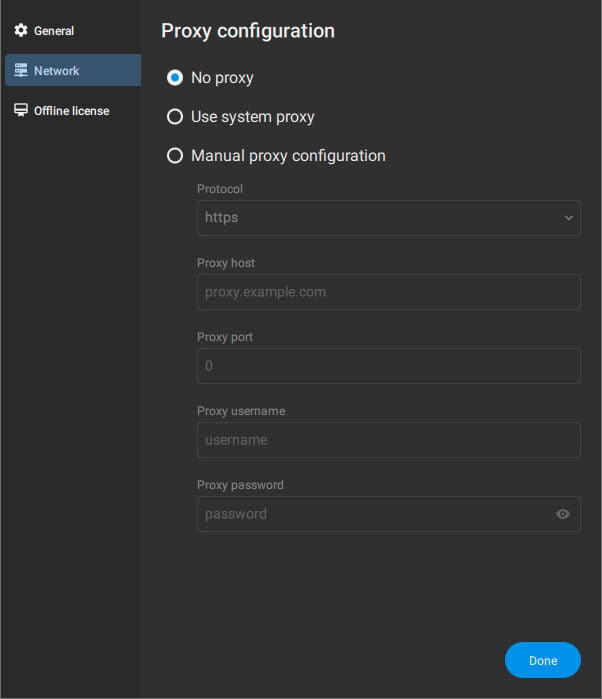
- Ask your system administrator which option to choose from the Protocol drop-down list (http,https,Socks4 Socks5, ). If you do not know choose Use system proxy.
- Enter the proxy Host name and Port number.
- Enter the proxy Username and Password.
- Click Done.
Solution 3: Verify whether a compatible software version is used
Your license type determines which version of PIX4Dmatic you can use:
- PIX4Dmatic Pro monthly/yearly license: You must use PIX4Dmatic 2.0 or newer. The versions 1.86 or older are not supported.
- PIX4Dmatic OTC license with a valid S&U: You can use any version of the software.
- PIX4Dmatic OTC license with expired S&U: You can only use version 1.86 or older. The PIX4Dmatic version 2.0 or higher requires active S&U .
Solution 4: Check for firewall or network restrictions
If you are on a restricted network (e.g., company, university, or government network), a firewall may block license verification.
In that case, you should contact your IT administrator to set up the firewall exception for the software. The below support article provides all the information your IT team needs to set up the PIX4Dmatic Firewall configuration.
You can learn more about PIX4Dmatic's firewall configuration on this article:
Firewall configuration - PIX4Dmatic.