
IN THIS ARTICLE
Overview
Cause
What are non-ASCII characters?
Workaround and solutions
Further assistance
Overview
DJI’s SDK is required to process thermal DJI datasets in PIX4Dmatic. Upon importing DJI thermal images, a dialog allows downloading DJI’s SDK. However, processing will fail if the active Windows username contains non-ASCII characters.
Cause
This behavior is caused by a known limitation within the underlying DJI SDK integrated into the software. The SDK is currently unable to correctly interpret, parse, or access system file paths that contain non-ASCII characters. If the project file path contains non-ASCII characters, it should work without issue.
Because standard Windows user profiles nest application data within the main user path (e.g., C:\Users\Username\AppData\...), any non-ASCII character in your Windows account name will prevent the DJI SDK from opening required files stored in the PIX4Dmatic application data.
What are non-ASCII characters?
Non-ASCII characters include:
- Accented letters: ö, ä, ü, é, è, à, ñ, ç, etc.
- Non-Latin alphabets: Cyrillic, Greek, Hebrew, Arabic, etc.
- Asian scripts: Kanji, Hanzi, Kana, Hangul, etc.
- Special symbols & emojis: &, #, %, ©, etc.
Workarounds and solutions
To resolve processing failures associated with this limitation, choose one of the following solutions:
Option 1: Enable Beta: Use Unicode UTF-8 Support
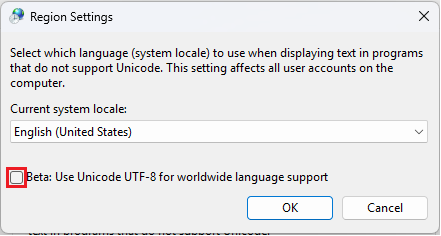
Windows UTF-8 support can also be enabled to handle non-ASCII characters in file paths across system applications:
- Open Region Settings in Windows.
- Go to the Administrative tab.
- Click Change system locale...
- Check the box for Beta: Use Unicode UTF-8 for worldwide language support.
- Restart the computer.
Option 2: Create a New Windows User Account
Creating an ASCII-only user profile provides the most reliable long-term solution when the operating system account name contains special or accented characters.
- Open Windows Settings (Win + I) and navigate to Accounts > Other users.
- Select Add account and create a new local user profile.
- Ensure the username consists strictly of standard ASCII characters (A–Z, a–z, 0–9, no accents or special symbols).
- Example: Use JohnDoe instead of JöhnDöé.
- Grant the new account Administrator privileges if required by your workstation policies.
- Log out of your current Windows session and log into the newly created account to run your projects.
Further Assistance
If processing failures persist after the steps above have been implemented, log files should be generated and a request submitted to the support team.