
IN THIS ARTICLE
What are Autotags?
Best Practices
How to enable the Tag Detection
How to use GCPs with the Tag Detection
Optimizing Autotag Detection
What are Autotags?
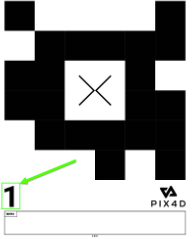
Autotags are targets that PIX4Dcatch can automatically detect and mark. They can be used as Ground Control Points (GCPs) or Manual Tie Points (MTPs), helping improve project accuracy while reducing the need for manual point marking.
Autotags can be combined with a set of known coordinates to function as Ground Control Points (GCPs). When a Point Collection containing surveyed coordinates is linked to the Autotags, PIX4Dcatch automatically associates each tag with its corresponding coordinate, marks them, and treats them as a GCP. If no known coordinates are linked to the Autotags, PIX4Dcatch considers them as Manual Tie Points (MTPs) and uses them to improve image calibration and reconstruction.
.jpg?width=250&height=500&name=Plantilla%20Iphone%20(18).jpg)

Autotags can be purchased or downloaded from the links below:
Tip: We recommend printing on A4-size or US Letter-sized paper for optimal compatibility. For durability, print Autotags and stick them to firm surfaces such as thin plywood or plastic. Many print shops also offer vinyl printing, which is weather-resistant.
Best Practices
Placement Guidelines
Proper Autotag placement is critical for accurate detection:
- Distribute Autotags evenly across the project area.
- Ensure Autotags are clean, flat, and not obstructed by shadows or objects.
- Avoid blurry images. Ensure each tag is clearly visible and sharp.
- Make sure tags are large enough to appear clearly in the captured images.
- Maintain a good image overlap so each tag appears in multiple images.
- Avoid placing unused Autotags within view, as they may interfere with detection.
- Do not place Autotags at the very edges of the project area. They may not appear in enough images.
Important: PIX4Dcatch currently supports up to 55 unique Autotags, each with a distinct numerical suffix.
Distribution Example
Think of a project area as a table, with Autotags as its legs. Clustered legs make it unstable, while evenly spaced ones keep it balanced. For best results, distribute Autotags evenly across the area and, if possible, place one near the center to enhance model stability.
Recommended setup:
- Minimum: 3 Autotags (required for processing).
- Recommended: 5–10 Autotags for improved accuracy.
Corridors: Offset the tags along the length and place a pair at each end.
How to enable the Tag Detection
PIX4Dcatch can automatically detect Autotags during image capture if Tag Detection is enabled. Enabling this feature without importing a Point Collection of GCPs will create MTPs.
- On the PIX4Dcatch home screen, tap Capture at the bottom.
- Before starting to capture a project, tap
 the Tools icon in the bottom right corner.
 - Select
.png?width=20&height=20&name=Button%20(1).png) Tag Detection.
Tag Detection.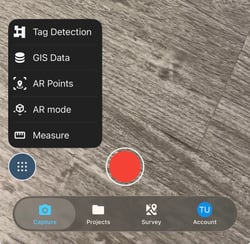
- Enable Detect Autotags.
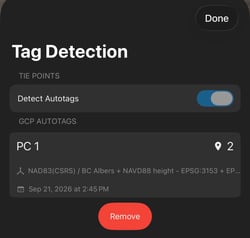
A confirmation label will appear on the capture screen showing that Autotag detection is active.
.png?width=150&height=26&name=image%20(5).png)
How to use GCPs with the Tag Detection
In PIX4Dcatch, a set of Ground Control Points (GCPs) is managed through a Point Collection. For Autotags to be used as GCPs, a Point Collection containing known coordinates must be imported and linked to the Autotags.
PIX4Dcatch can be used to capture GCPs directly in the field, or known coordinates can be imported into PIX4Dcatch via a Point Collection. For more information, visit How to import and mark Ground Control Points (GCPs) in PIX4Dcatch.
To enable the tag detection feature with GCPs, follow the steps below.
- After the Tag Detection feature is enabled, tap Import Point Collection.
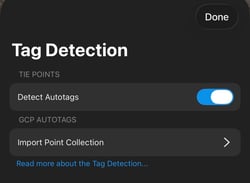
- Select a Point Collection from the list.
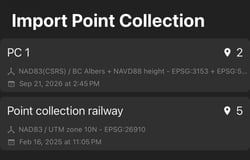
- Once imported, tap Done.
Important: Matching the Autotags is based on the numerical suffixes of the point names in the Point Collection. PIX4Dcatch will match the numerical suffixes of point names with the Autotag numbers. Please ensure that the point names end in the same number as the number visible on the Autotag.
Warning: The point collection must have a projected output CRS.
Example:
- PointName_1 corresponds to Autotag 01
- PointName_2 corresponds to Autotag 02
- PointName_3 corresponds to Autotag 03
During Capture
While moving around the site:
- PIX4Dcatch will mark detected Autotags in real-time.
- Tags with green labels indicate valid detections.
- Below the Signal Indicator dialog, the total number of successfully marked Autotags and the number of point entries in the Point Collection are displayed.
Note: A tag must be visible in at least three images to be used in processing.
Optimizing Autotag Detection
After a capture, PIX4Dcatch gives the option to optimize Autotag detection. This step improves marker precision and strengthens the 3D model reconstruction. Autotag Detection can be optimized in two ways: during dataset capture or after project capture.
Optimizing autotag detection while capturing a dataset
Note: Optimization is automatically applied to projects with fewer than 500 images at normal resolution.
PIX4Dcatch automatically optimizes Autotag detection during project processing. Enabling this option ensures improved accuracy without requiring manual intervention.
To configure automatic optimization when processing:
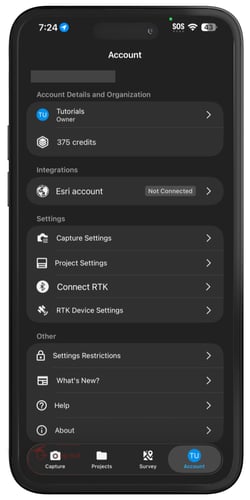
- On the PIX4Dcatch home screen, tap the user icon in the top-right corner.
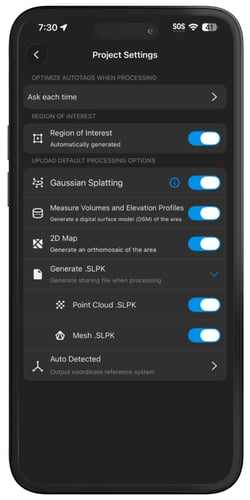
- Under Settings, tap Project Settings.
- Under Optimize Autotags When Processing, tap Ask each time.
- Choose one of the following options:
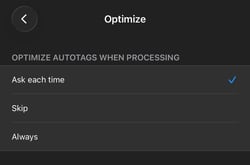
Ask each time: Display a prompt before optimizing.
Skip: Do not optimize when processing.
Always: Automatically optimize upon processing.
Optimizing autotag detection after capturing a dataset
- Open PIX4Dcatch and tap Projects at the bottom.
- Select the project for adding an annotation.
- In the top-right corner, tap
 the three-dot icon.
 - Select Optimize

- A list of optimization options will appear. Select one or more options; multiple optimization tasks can be processed concurrently in a single optimization run:
- Autotag Detection: Improves the accuracy of 3D model reconstruction.
- Depth Alignment: Helps remove double surfaces in the reconstruction.
- Point Cloud (iOS with LiDAR only): Generates a point cloud from the captured data. If Point Cloud is selected, the two processing options will be available.
- Dense: Generates a highly detailed point cloud with a large number of points. It requires a longer processing time and contains greater details.
- Sparse: Generates a lighter point cloud with fewer points. It processes faster and contains less detail.
4. Tap the Optimize icon .png?width=150&height=20&name=Button%20(6).png) .
.