
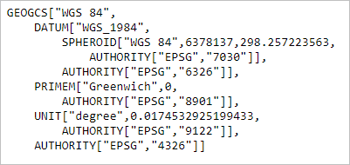
PIX4Dcatch's Site localization function enables the ability to work in a local coordinate system and transform points between the local and global coordinate reference systems. With an exported project and .wkt file, a site-localized project can be imported and processed with PIX4Dmatic.
目次
Export the PIX4Dcatch Project Files from the Mobile Device
Create a New PIX4Dmatic Project
Import the WKT File into PIX4Dmatic
Process the Site-Localized Project
Export the project files from the device
If not already done, export and save the project and WKT files from the mobile device.
- From the PIX4Dcatch project on the mobile device:
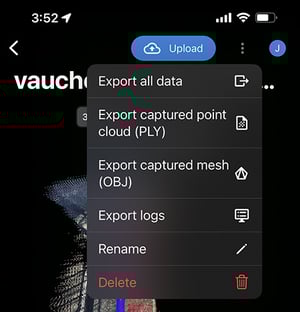
- Tap the dropdown menu
 in the top right of the PIX4Dcatch Project.
 - タップ すべてのデータをエクスポートする.

- Export and save. This file will contain the image files. (plus DepthMap.tiff and Confidence.tiff files from LiDAR-capable Apple devices)
For more information: How to export PIX4Dcatch projects (iOS/Android).
- Tap the dropdown menu
- Export and save the Site Localized WKT file:
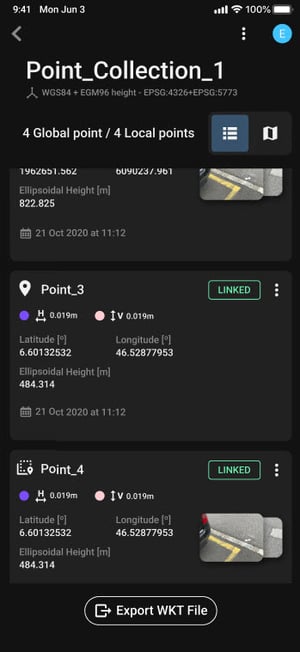
- From the corresponding PIX4Dcatch site-localized point collection tap
 .
. - Export and save.
- From the corresponding PIX4Dcatch site-localized point collection tap
For more information: Site Localization - PIX4Dcatch.
Create a New PIX4Dmatic Project
- PIX4Dmaticを開きます。

- 新しいプロジェクトを作成し、画像ファイルまたはフォルダをインポートします。
For more information: Create a project - PIX4Dmatic.
WKTファイルをPIX4Dmaticにインポートする
新しいPIX4Dmatic プロジェクトより: 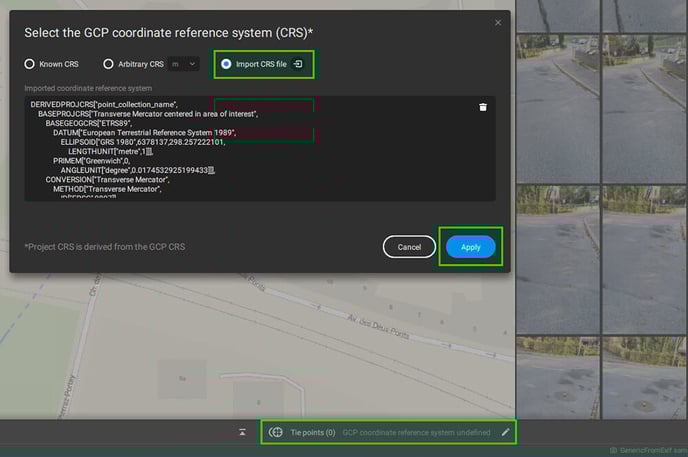
- をタップして
 in the
  「タイポイント」タブ
 - を選択してください CRSファイルをインポートする
 bubble.
- インポートするサイト固有の point_collection_name.wkt ファイルを選択してください。
- タップ
 .
.
WKTファイルのインポートが正常に完了すると、プロジェクトにはローカライズされたポイントの集合が表示されます
プロジェクトの名称として  PIX4Dmatic の左下隅にある座標系。
Process the Site-Localized Project
インポートした.wktファイルについては、通常通り処理してください。GCPを追加する必要がある場合は、ローカル座標系で測定し、マーキングする必要があります。収集するポイントは、プロジェクトの位置特定に使用したポイントとは異なるものでなければなりません。
詳細については: PIX4DmaticでのPIX4Dcatch 処理方法。