
Disclaimer: Pix4D publishes this information as a courtesy to its customers. Because this information may not be accurate, Pix4D makes no warranty of any kind, expressed or implied, with respect to its validity.
Windows コンピュータで NVIDIA グラフィックスカードのドライバを更新する最適な方法は、NVIDIA のダウンロードサイトから適切なドライバを直接ダウンロードすることです。そのためには、対象のコンピュータに現在どのグラフィックスカードが搭載されているかを把握しておく必要があります。この情報を確認するには、NVIDIA コントロールパネルを開くことをお勧めします。
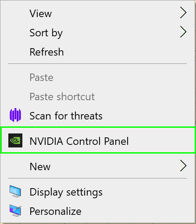
1. デスクトップの任意の場所を右クリックします。
2. 表示されるダイアログボックスで、「NVIDIA コントロールパネル」を選択します。
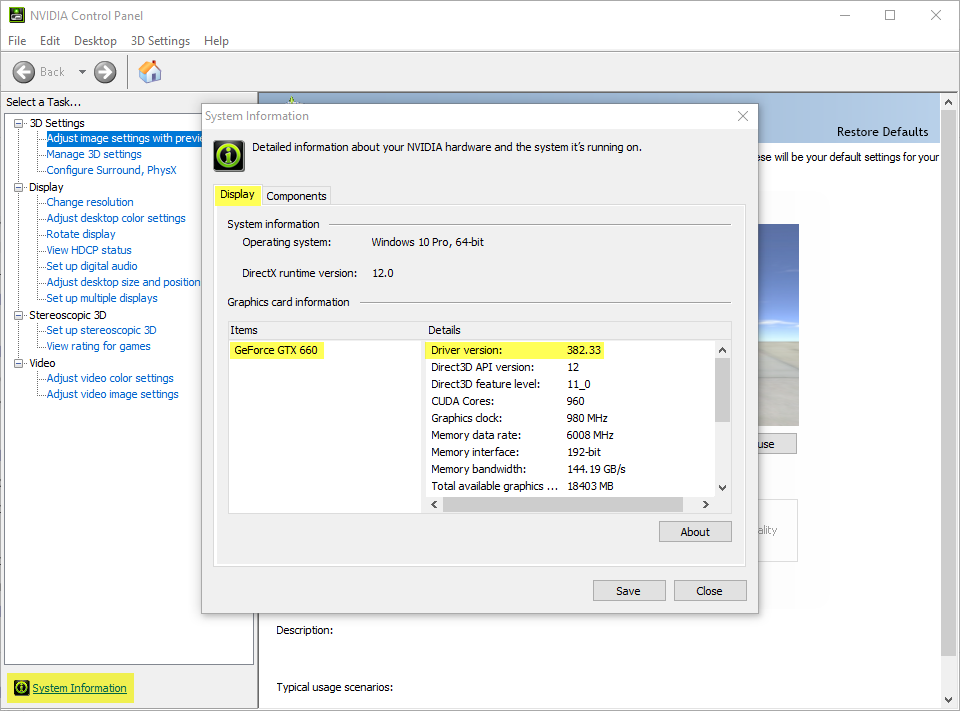
3. 次に、「ヘルプ」タブをクリックし、「システム情報」を選択します。または、画面の左下から「システム情報」にアクセスすることもできます。
4.「ディスプレイ」タブを選択します。
5.「項目」リストにあるGPUと、ドライバーのバージョン番号を確認します。
6. Go to NVIDIA's page to download drivers.
7. Select the specs of the GPU and click SEARCH.
8. Check the Version and if it is newer than the one currently installed, click DOWNLOAD.
9. Run the .exe file and follow the instructions to upgrade the driver.
10. Restart the computer.
Another option for updating the NVIDIA graphics card controllers is to use the official NVIDIA app. This application automatically detects the NVIDIA graphics card installed on the computer and sends a notification whenever a new driver version is released for that specific GPU.