
エラー
For certain crashes, there may be a Windows event log message: A TDR has been detected. The Application must close. The application was unable to continue rendering because the Microsoft Windows imposed time limit (TDR) was exceeded. This is normally the case when the workload sent to the graphics card is greater than what the graphics card can process in two seconds. For more information: NVIDIA Support.
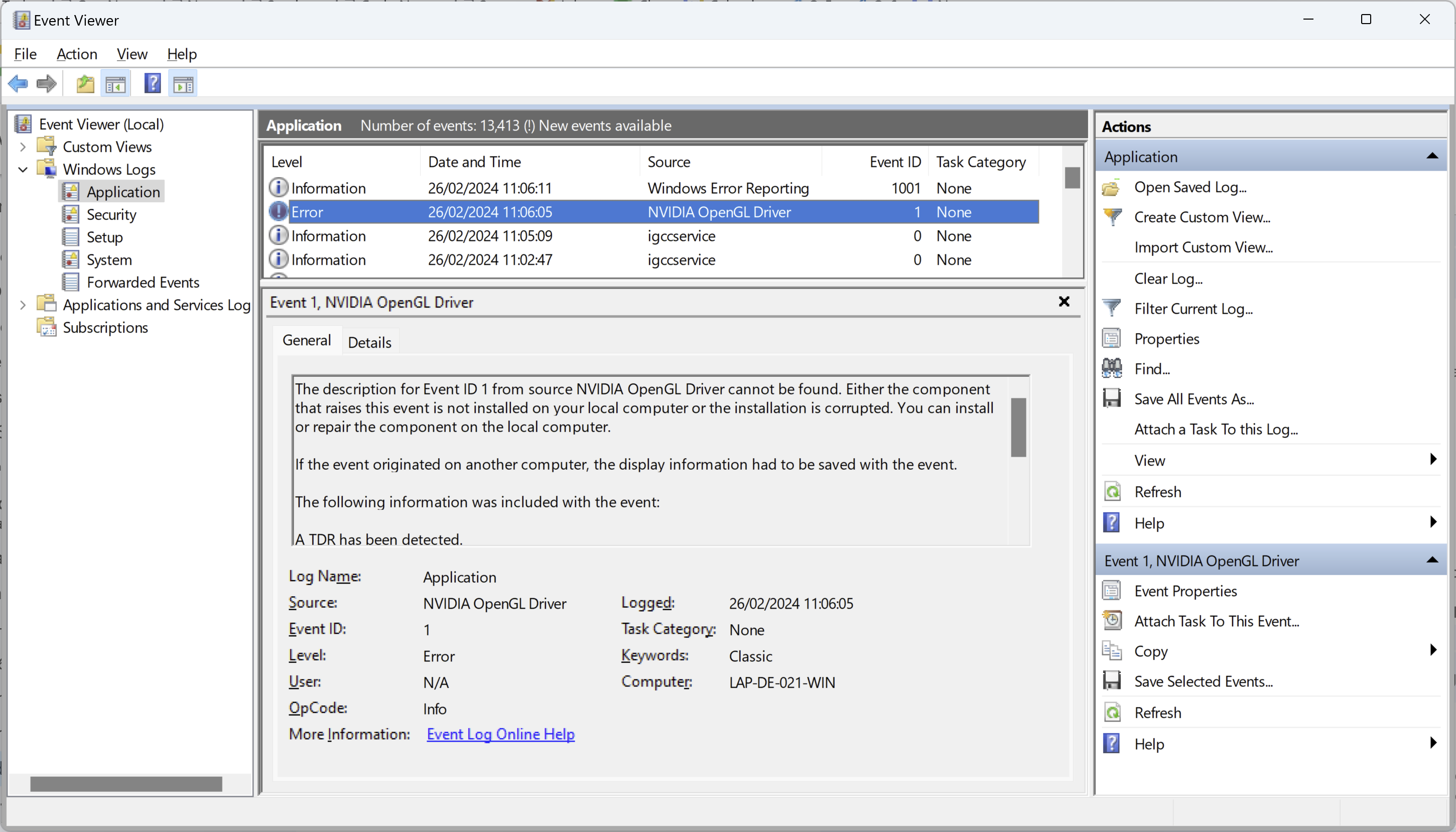
To access this file:
- PIX4Dmatic PIX4Dsurvey を起動します。
- 問題を引き起こす。
- Windowsの検索ボックスから、「Windowsイベント ビューアー」を開きます。
- 左側のパネルで、「Windows ログ」>「アプリケーション」を選択します。
- Look for the error regarding the NVIDIA OpenGL Driver.
解決策
Increase the Timeout
To increase the Timeout:
- Open the Run dialog box by pressing Windows + R keys on the keyboard.
- Type regedit and click OK to open the Registry Editor.
- Navigate to the following path, by expanding the folders on the left panel:
- HKEY_LOCAL_MACHINE\System\CurrentControlSet\Control\GraphicsDrivers
- Right-click on a space on the right panel and select New > DWORD (32-bit) Value
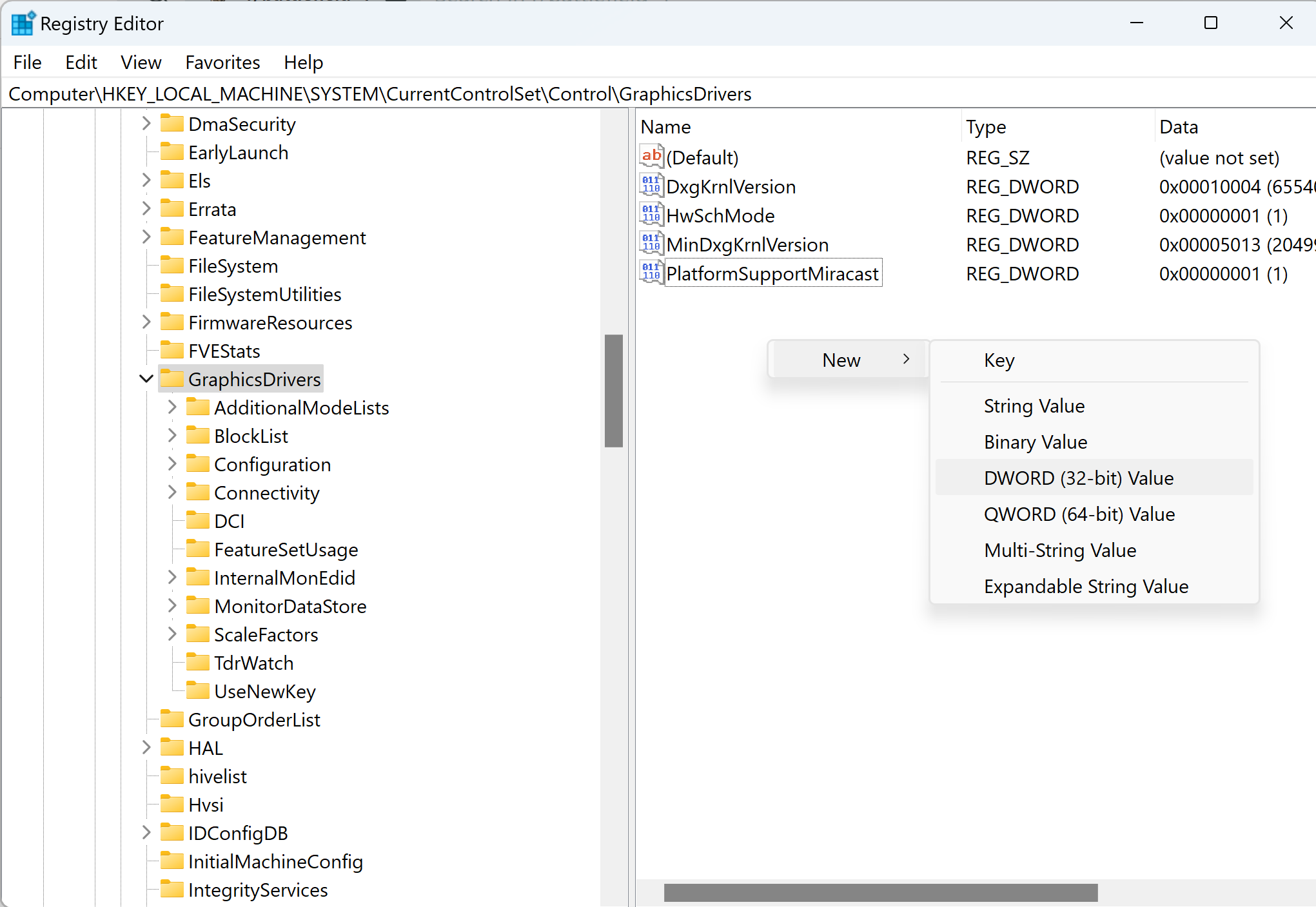
- Name the new value as TdrDelay.
- Right-click on the new value and click Modify.
- Enter 10 seconds and click Decimal
- Click OK to save the changes.
For more information, GPU drivers crash with long computations (TDR crash)